


 By
- Aaliya Yousaf.
 Blog
Not everyone on a team spends the day in front of a laptop. Site supervisors walking a construction project, sales reps between client visits, real estate agents showing properties, delivery coordinators moving between locations — for a large part of the UAE workforce, "at work" means somewhere other than a desk. Any project management setup that assumes constant desktop access quietly excludes exactly the people whose updates matter most in real time.
The Asana mobile app has genuinely strong functionality — full task management, comments, forms, and notifications. But field teams don't use it the same way office staff use the desktop version, and a workspace designed only with desktop habits in mind ends up frustrating exactly the people who most need quick, on-the-go updates. Getting mobile right means designing specifically for how field-based work actually happens.
The Asana mobile app isn't a stripped-down version of the desktop experience — most core functionality carries over, which matters for field teams who need to do real work, not just check status.
A workflow that works well on desktop can be genuinely frustrating on a phone — long dropdown lists, dense custom fields, and multi-step task creation all take longer to navigate on a small screen while standing on a site or between appointments.
Field-created tasks should only require what's essential in the moment — a description and a category. Everything else can be filled in later by someone at a desk.
A short mobile-friendly form is faster to fill out on a phone than navigating a full task-creation screen, and it standardizes the data being captured.
Field staff generally need to see what's assigned to them today, not the full project structure — My Tasks gives that focused view without extra navigation.
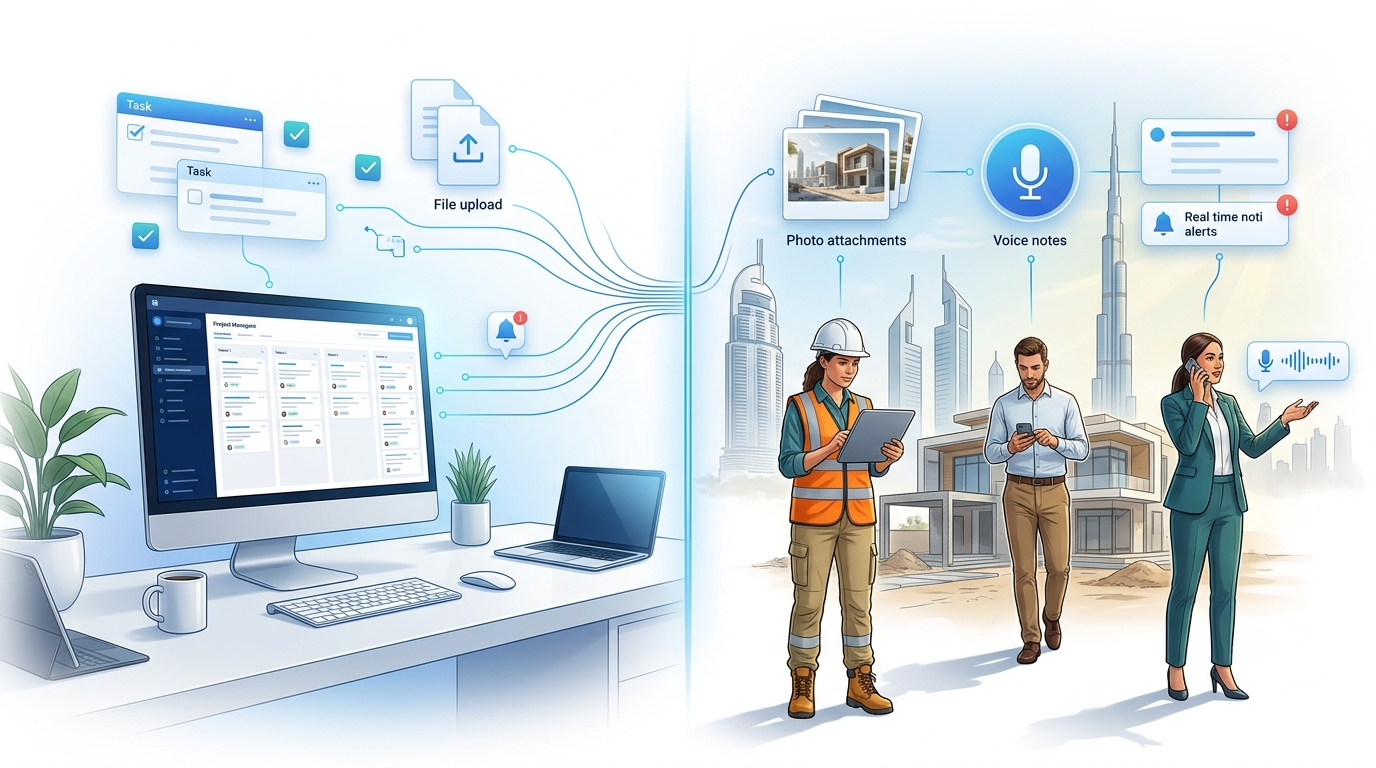
The single biggest advantage mobile has over desktop for field work isn't a unique Asana feature — it's proximity. A phone is already in the person's hand at the moment something needs documenting, which desktop access almost never is. Photos attached directly to a task at the time an issue is spotted are far more useful than a description written from memory later. The same applies to voice-to-text for task descriptions or comments — dictating a quick note on-site is faster and more accurate than typing it out after the fact, or worse, not logging it at all.
Default notification settings are built for desktop-heavy usage, and left untouched, they tend to overwhelm mobile users with alerts for things that don't need immediate attention. For field roles specifically, it's worth deliberately tuning notifications around what genuinely needs a same-moment response — a direct @mention or an urgent task assignment — versus what can wait until the next time someone checks in from a desk. Getting this wrong in either direction causes real problems: too many notifications and people start ignoring the app; too few and something urgent gets missed.
Construction sites, basements, and remote locations don't always have reliable connectivity. The mobile app handles brief connectivity gaps reasonably well — actions taken while offline generally sync once a connection is restored — but this shouldn't be relied on for extended offline periods. For teams working in consistently low-connectivity environments, it's worth building a habit of syncing at known connectivity points (like returning to a site office) rather than assuming real-time sync will always work seamlessly.
For teams with meaningful field or on-the-go work — construction, real estate, sales, delivery — we design the mobile experience deliberately, rather than assuming the desktop setup will translate well on a phone.
We build short, focused forms designed to be filled out quickly on a phone, not adapted from a desktop version.
Field roles get notification rules configured around genuine urgency, not left at default settings that overwhelm or under-alert.
Field staff are trained on the workflows they'll actually use daily, delivered in a short, hands-on session rather than a generic walkthrough.
The Asana mobile app is genuinely capable — the gap isn't the software, it's designing workflows specifically for how field-based work actually happens. Minimal required fields, mobile-friendly forms, and deliberately tuned notifications are what turn mobile from an afterthought into a real coordination tool for the people who spend their day away from a desk.
If part of your team works from the field, book a free consultation with SassyOS and we'll show you what a properly designed mobile workflow looks like.
Core Asana Services
Feature Guides
Industry Use Cases
We'll design mobile-first workflows, forms, and notifications built for people who aren't sitting at a desk all day.
Book a Free Consultation Get in Touch